Showing posts with label Revit Structure. Show all posts

2.28.2023

Revit Structure Benefits

Revit Structure is a powerful and versatile software tool that is widely used in the engineering and construction industries. Whether you are an architect, engineer, or construction professional, Revit Structure can help you to design, model, and analyze complex structures with ease.

Revit Structure offers a wide range of tools and features that enable you to create 3D models of buildings and other structures, and to perform advanced analyses such as load calculations, structural design, and construction documentation. With Revit Structure, you can streamline your workflow and collaborate more effectively with other members of your team, resulting in more efficient and accurate project outcomes.

In this blog, we'll explore the key features and benefits of Revit Structure, and provide tips and tricks for using the software effectively. Whether you are new to Revit Structure or an experienced user looking to improve your skills, you'll find valuable insights and information here to help you get the most out of this powerful software tool. So let's get started!

  1. Revit Structure is a software tool for designing and modeling complex structures in the engineering and construction industries.
  2. It is widely used by architects, engineers, and construction professionals to create 3D models of buildings and other structures.
  3. Revit Structure offers advanced analysis tools for load calculations, structural design, and construction documentation.
  4. The software enables you to streamline your workflow and collaborate more effectively with other members of your team.
  5. Revit Structure is part of the larger Revit software suite, which also includes tools for architecture and MEP (mechanical, electrical, and plumbing) design.
  6. The software uses a parametric modeling approach, allowing you to make changes to your design and have those changes automatically propagated throughout your model.
  7. Revit Structure includes a comprehensive library of building components, such as steel and concrete elements, which can be customized and reused across projects.
  8. The software supports a range of analysis and simulation tools, including finite element analysis and wind load calculations.
  9. Revit Structure integrates with other software tools commonly used in the industry, such as AutoCAD and Navisworks.
  10. The software is regularly updated with new features and enhancements, making it a valuable tool for staying up to date with the latest developments in structural design and engineering.

Revit Structure is an essential software tool for architects, engineers, and construction professionals who need to design and model complex structures. With its advanced analysis tools, 3D modeling capabilities, and collaboration features, Revit Structure streamlines the workflow of professionals across the industry. Whether you're designing a new building or retrofitting an existing structure, Revit Structure enables you to optimize your design and reduce the risk of errors and delays.

By utilizing Revit Structure's parametric modeling approach, comprehensive building component library, and simulation tools, professionals can save time and improve accuracy while creating innovative, cost-effective solutions to structural challenges. With regular updates and enhancements, Revit Structure continues to be at the forefront of structural design and engineering, making it an indispensable tool for professionals in the field.

In conclusion, Revit Structure is an essential software tool for anyone involved in designing, modeling, and analyzing complex structures. Its advanced features and comprehensive toolset make it a valuable asset for professionals across the engineering and construction industries, enabling them to create innovative, efficient, and cost-effective solutions to meet the demands of their clients.


revit-strucure-construction


4.05.2022

Revit Roadmap for Structures

2017

  • Split Columns
  • Column base attachment to footings/foundations
  • Structural foundation reporting parameters
  • New parameters for slab documentation
  • Steel Connections
  • Generic connections

Rebar modelling

  • Reinforcement connectors
  • Bent fabric reinforcement
  • Constrained rebar placement
  • Graphical rebar constraint editing
  • Variable rebar distribution


2018

Rebar modelling

  • Rebar placement in free-form concrete objects
  • Improved varying rebar distribution
  • Graphical rebar constraints in 3D views
  • Rebar placement in imported concrete elements

Steel Connection

  • New steel connection types
  • Steel connection for custom sections
  • Specify the priority of elements in steel connections

New precast content for beams, columns, and foundations


2019

Steel structures and connections

  • 130 new standard steel connections
  • Combine steel parts and standard connections to define a custom connection type.
  • Plates, bolts, anchors, shear studs, holes, and welds can now be placed in your model as elements.
  • Modify plates and steel elements with modification tools to better accommodate the geometry of elements at a connection. Steel parametric cut tools: You can now add custom parametric cuts to steel elements to accommodate joined elements and connections.
  • API for detailed steel modelling: Using the detailed steel modelling for Revit dedicated API, you can now create individual steel elements as well as generic connections, existing or new standard steel connections and custom connections.
  • Precast hollow core slab families
  • Enhanced custom fabric sheet (CFS) creation
  • Export/import steel connections


2020

Rebar modelling

  • Improved rebar copy and move logic
  • Multi-rebar annotations
  • Rebar in model-in-place stairs
  • Rebar to rebar adjustments
  • Intuitive rebar constraint visualization and editing

Steel connections

  • Propagate steel connections
  • Steel connection grouping
  • Tag and dimension steel connection elements
  • Steel connections for Dynamo

Precast double walls


2021

Rebar modelling

  • Create new standard rebar shapes
  • Couples for arc-shaped rebar
  • End treatments without couplers for rebar
  • Override rebar hook lengths by instance
  • Select a host of rebar

Steel connections

  • Steel connection editing enhancements
  • Create stiffeners on beams and columns
  • Insert steel elements in sections and elevations views
  • Dimensions snapping to steel plates 


2022

  • Library-based Connection Design Automation
  • British Rebar Shapes Update
  • Reinforced Concrete Non-bearing Partition Walls
  • Adaptive Propagation for Rebar
  • Align Couplers to Create Post-tensioning Anchors
  • Rebar Covers in Schedules and Tags

7.24.2020

Revit Structure Q&A

Revit Structure Q&A

  • What is Revit Structure?
  • What are the advantages of using Revit Structure?
  • What are the files used in Revit Structure?
  • What is Bidirectional Associativity in Revit Structure? 
revit structure

1) What is Revit Structure?

Revit Structure is a purpose-built software for building information modelling. Traditional drafting CAD software represents the geometry of a design by using stylized symbols from designated illustrations. Some examples of these illustrations may be a series of plans, elevations, and sections. These illustrations are essentially independent of one another.  Building information modelling software represents a series of intelligent objects and elements such as walls, beams, schedules, and plan views. These objects and elements have parametric attributes. The information about these objects and elements is stored in a single-building model. You can extract any number of different views of the data from the model.


2) What are the advantages of using Revit Structure?

Revit Structure is normally used in structural design and building models. The BIM workflow offered by Revit Structure not only maximizes productivity but also optimizes design and documentation workflows. It speeds up project progress in design to completion, automating updates on the model with a single design change.


3) What are the files used in Revit Structure?

The files used by Revit Structure same as Revit Architecture are:

  • RVT: Revit Project Files
  • RFA: Revit family file
  • RTE: Revit model file
  • RFT: Revit family model file


4) What is Bidirectional Associativity in Revit Structure? 

Bidirectional associativity is the ability of the building information model to coordinate changes made in any view and propagate these changes to all other views. Bidirectional associativity is applied automatically to every component, view, and annotation. For example, a change in the size and location of a column is reflected in all plans, details, and schedules; all of which are associated with the column and influenced by the changes and are automatically adjusted. Revit helps ensure that plans, schedules, and building sections and elevations are immediately available, up-to-date, and accurate.  


Example of Bidirectional Associativity

  • Flip a section line and all view updates
  • Draw a wall in the plan and it appears in all other views, including material takeoffs
  • Change a beam or column type in a schedule and the change propagates throughout the graphical and non-graphical views
For further learning, click HERE. Many thanks!

7.20.2020

Practical Practices for Revit Structure Modeling


  1. Minimize the use of Revit in-place families. Use preloaded families in the templates or your company project templates.
  2. Minimize reference planes or delete it after use. For consideration, careful deletion because some reference planes are used as work plane otherwise name or tag the reference plane.
    reference plane in revit
  3. Maintain fewer and only essential links. Especially inserting CAD as an import symbol. 
  4. Link only in current view. This is to avoid CAD links to show up in all views.
    Link current view in Revit
  5. Work at Coarse detail level unless you are working with metallic structures.
  6. When modelling, use families rather than groups. (Using groups to efficiently update repetitive elements)
  7. Delete unused groups. And it can be done in Paragraph 9 using Purge command or directly from Project Browser.
  8. When using copy/monitor. Make it sure that the element is ticked on structural otherwise it is hidden in all view. Further reading see here: https://pinoycadcoin.blogspot.com/2019/08/6-tips-and-tricks-why-revit-elements.html


  9. Purge model files on a regular basis. Let's say weekly basis. Purge command is a way to reduce the model file size and increase user efficiency.
  10. Eliminate unnecessary views from model files. Project browser it is like a project folder floating in your Revit. Be organize.
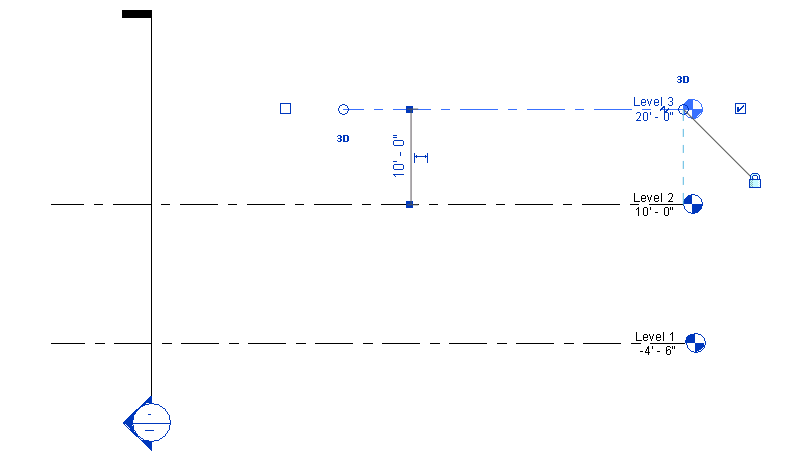
  11. Use Propagate Extents for grids and levels (other option is copy to clipboard and paste/aligned to selected levels)
  12. When linking Revit models use as underlay be sure to pin it and click the Select Links for disabling and accidental selecting the elements.
Thanks for reading folks!

9.03.2019

Locating 2D Details in Revit Structure

Locating 2D details in Revit Structure

Sometimes it can be a real challenge trying to find 2D details within the Revit Structure library. What a surprise it has!. If it is available in the library, why CAD? I even didn't know there was a DWF file located in the root of the Detail Components folder.

This has 30 drawing sheets with all the graphic 2D details and the folder locations. Today I am using Revit 2017 and surprise me only one DWF in that UK library folder, and why I wonder I am looking DWF if I have these choices for Revit family for 2D details. Some option or scenario in a working environment, the CAD file can be 2d details if the library is insufficient. But the downside, you have to detail it from scratch or modify it from existing.

The 2D detail items can be located in Windows 10 here:

C:\ProgramData\Autodesk\RVT 2017\Libraries\UK\Detail Items


2d-detail-items

8.14.2019

7 Tips and Tricks Why Revit Structure Elements are Missing or HIDDEN

Why Missing or Hidden: It is like hide and seek sometimes you are not aware you did it or surprisingly you don't.  Unless there is a plugin that pop-ups in you Revit someone who hides your modelled element.


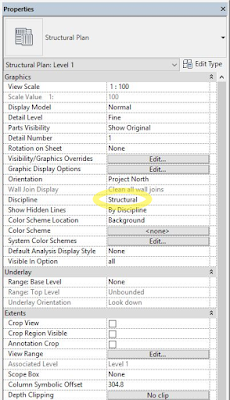
1. Properties--> Under Structural--> Checked out or ticked the "STRUCTURAL". It depends on the discipline you are working on in the model. This happens when the 3D model element is showing but the plan and section are missing.

2. Look or Hit the Visibility Graphics? Under model categories, Annotation Categories, and Filter. It's all there for you to check and find out. For example, steel won't show a stick symbol. Check the visibility graphics, next model categories, look at the structural framing under that tick the stick symbol.

3. Reveal or un-Hide HIDDEN ELEMENTS. It's a blue bulb icon. Under the view control bar and reveals the elements you froze before.

4. Deleted or Purged. The only way you to chase the missing element is to look up the local backup.

5. Override by linework using invisible. To get back to the element use linework too, choose linestyle by category. Or checked the linestyles, for example using the white colour.

6. Steel section not shown in 3D Views but visible in plan, section and elevation. Check the family visibility settings. Look up the details, and check what is missing.

7.  Display Model Parameter. There is a parameter in your views called the "Display Model". It lets you quickly and easily halftone or HIDE all your model elements in that view.

10.01.2018

Revit Tip: How to Slope Horizontal Steel Beam

How to Slope Horizontal Steel Beam (with images)


Issue:
You have an existing beam that has a level as its work plane. You want to set its work plane to be a sloped reference plane, but only the reference planes or levels parallel to the beam are available when you edit the beam.

Solution:
To make the existing steel beam align with a sloped reference plane.

Open an elevation or section view of the beam.
elevation-section

Draw a reference plane parallel to the beam/slab using the Reference Plane tool on the Basics tab of the Design bar and name it by editing the reference plane properties.

Select the beam.
select the beam

Click Edit Work Plane on the Options bar.
work plane

Select Name and select the reference plane that you just created from the drop-down menu and then click OK. Draw a sloped reference plane using the Reference Plane tool and name it.
reference plane

Click Align to align the horizontal reference plane to the sloped reference plane. That's it.
align to align

Bottom-line:
After you made it, you can copy the sloped beam one by one along the sloped reference plane.

Add'l Source: AUTODESK KNOWLEDGE NETWORK

9.05.2018

What Wrong With Corbel?

Issue:
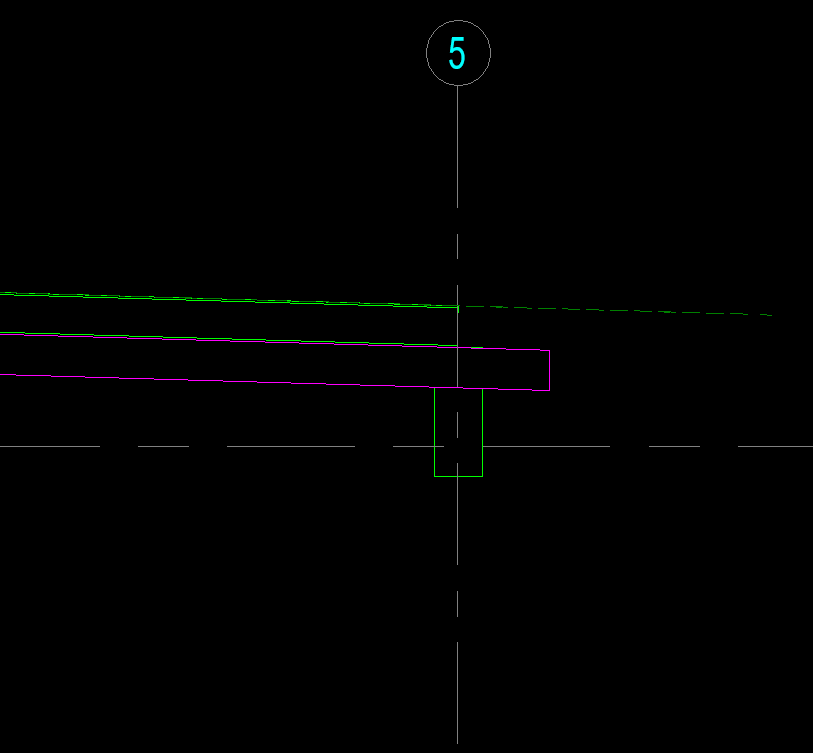
Why the beam isn't connected with corbel column?. Although blue dots is centre to centre with the column.
precast beam to concrete beam

Solution:
The column material for Model Behavior is set as Precast Concrete.
This means that the element is not joining with other Concrete elements, like the beam. You can set the material to Concrete and the beam will join correctly.
family_category_properties

Alternatively, you can make the beam Precast Concrete and adjust the cutback.

Source: Autodesk Forum

Bottom line:

Revit behaves as it was like in a real-world scenario. How could it possible if precast column corbel can be connected to a cast in situ beam. Maybe there's a possible way for this kind of connection technology. Any thoughts?
what wrong with corbel

7.29.2015

The 5 Classes of Revit Elements

Classification of categories of elements followed in Revit Structure is based on their usage. 
Revit Structure uses five classes of elements:

Host
Host are elements categories that form the basic structure of a building model and include model elements such as structural walls and floors.

Components
Components are the elements that are added to host elements or act as stand-alone elements such as doors, windows, and foundations. Components are used to model building elements that are usually delivered and installed on site, such as doors, windows, furniture, and so on. Components are instances of loadable families and are hosted by other elements, which are instances of system families. For example, a door is hosted by a wall, while a freestanding component such as a desk is hosted by a floor or a level.

Annotations
Annotations are the 2D; view-specific elements that add content to the project documentation such as dimensions, tags, text notes, and so on.

Views
Views represent various orientations of a building such as plans, elevation, sections, 3d views, and so on.

Datum
Datum refers to the reference elements that assist you in creating a building model, which include grids, levels, reference planes, and so on. However they are not visible in all views, if the datum does not intersect a view’s plane (or does not intersect the plane in the correct way). Then it will not be visible in that view.
datum
Image source: http://help.autodesk.com/view/RVT/2014

Source: Autodesk Revit Help, Global etraining

11.01.2014

Revit Tip: How to mask text in the dimensions

Masking regions provide a way to obscure elements in a view. Masking regions may be useful in scenarios like the following:
  • You need to obscure elements in a project.
  •  You are creating a detail family or a model family and need the background of the element to mask the model and other detail components when it is loaded into a project.
  • You need to create a model family (from imported 2D DWG files) that obscures other elements when placed in a view.
Here’s little tricks that will guide you along the way.
  1. Click the dimension text, a pop up window will appear into your screen.
    revit-dimension
  2. In the dimension value, there is two option. Chose the "Replace With Text".  Check the properties of what text style you are using. 
    dimension-text-dialog
  3.   For example, the text style of your text dimension is Arial and takes a look first at the Character Map. To find it easier where is the character map, use the search bar of windows explorer.
  4.  Choose the Arial style, select the blank character and copy.
    character-map
  5. Back to dimension text dialogue in the "Replace With Text", press Ctrl+V. Then press Ok and Apply. 
Update: Let me know if this succeeds. I tried this in Revit 2017 but it doesn't. So the best option for this to fill in and replace. I used the "." period or the middle dot character and hide to apparent element if may coincide. 

Thank you!

10.18.2014

Revit Structure Training via Slideshare

Building Information Modeling is a design and documentation methodology based on coordinated, high quality information. It enables design and construction teams to create and manage information about a building project consistently and reliably across the scope of the project. The information is stored in a single building model. This ensures that information is coordinated, consistent, and complete.


1.08.2014

Revit Structure- A Tool to Success

Revit Structure software is a building information modelling application for structural design, analysis, and construction documentation. It has a physical model with fully associated analytical model. Since it was launched, a lot of companies were using this program on their successful projects. But did you know it was originally developed by a start-up company called Charles River Software (founded 1997) - later renamed Revit Technologies. Autodesk successfully acquired Revit Technologies on April 2002.

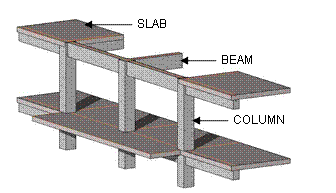
One of the major advantages of Revit Structure is the use of true structural elements such as walls, columns, beams, slabs, trusses and parametric building model. All structural elements have a property which you can modify according to your design.

The physical model composed of structural components such as columns, slabs, beams, footing and braces. It drives the construction documentation as well as coordination for engineers and architects. The analytical model contains information that can be used in several leading third-party analysis applications, such as ETABS and RISA-3D. The analysis program then returns information that dynamically updates the entire physical model and therefore the documentation.

Figure 01: Showing some of the structural elements created in Revit Structure.
With Revit Structure, curve beam is easy to make, whether it is in a vertical or horizontal orientation. It has a sketch mode settings where you can make your curve beams easily - it is just like making a 2D line. Just hit finish sketch icon after sketching all the necessary elements and you can go to 3D view to check your model
Figure 02: Sample of curve structural element.

Every project has a detailed design stage, Revit Structure also provides materials for detailing, one is rebar which is often used as a reinforcement material in any concrete structure. Rebar sizes are available in tool options which allow the users to pick the desired bar size. Users can also draw their reinforcement detail in AutoCad and linked it into Revit drawing.


NOTE:

Since it is 3D, adding reinforcement into the drawing will make the project file quite heavy - users can’t work properly. Users need to have a higher capacity of the machine to work on this stage

Revit Structure is a 3D software, as a result, users can work in any of these views, switching between them as needed. Users can easily create their own views such as structural plan views fully associated with the corresponding levels. In a mouse click, automatic views are created from the model by just placing an elevation or section line on the floor plan. As the model progresses, Revit Structure automatically generates standard views including elevation and section views, and users can easily create their own 3D camera view of the building. Users can also alter the display of the elements in any view by choosing "wireframe,” "hidden line,” "shaded,” or "shaded with edges display.

Figure 03: Concrete structure in 3D view.


BIM: What's It All About? A Beginner-to-Advanced Guide to Building Information Modeling

The construction industry is evolving faster than ever, and at the center of this transformation is BIM (Building Information Modeling) . Wh...