Showing posts with label AutoCAD 2012. Show all posts

7.08.2017

10 Productivity Tips for Everyday Cadding

AutoCAD has been around for a long time. Yet simply using AutoCAD every day does not necessarily make you more productive. You may not realize it, but old habits, bad habits, and  inefficient commands and techniques may be robbing you of productivity.
                                                       - Matt Murphy (4DTechnologies/CADLearning)

1. EXPLORER

I thought this command was for Internet Explorer, but it’s not. I was surprised when I type this command EXPLORER, presto it was access to the libraries e.g. documents, videos, pictures, and music.


windows-libraries
2. NOTEPAD

Type “notepad”(without the quotes) into the command line. It will prompt: File to edit. Now if you don’t know which file you want to edit just type the *. Bingo, notepad is already in front of your screen.

3. PAINTBRUSH

Create and edit drawings or images in an instant. Type “PB” or PBRUSH. AutoCAD will open its application. Even your recent edited images you can explore it.


windows-paintbrush


4. START

This command defines which application to start. Just type the START command. A prompt state “application to start”. Example for Excel just types EXCEL, for word is WINWORD and snipping tool, SNIPPINGTOOL. You can use the acad.pgp file to define a new AutoCAD command that runs an external command to start your application. 

5. SPACEBAR
      Did you know that you can:

  • stretch
  • move
  • rotate
  • scale
  • mirror
  • add vertex
  • remove vertex
  • convert line segment into an arc 


Without even typing on the keyboard and by just picking a grip. Yes, depending on where your base point is (base grip). You can cycle through these commands while on grip mode by pressing SPACE bar.
6. COPY+ARRAY COMBO


command-line

7.  ZOOMFACTOR

To adjust the zoom percentage, change the value of the ZOOMFACTOR system variable. The initial value of ZOOMFACTOR is 10. You can enter an integer value for ZOOMFACTOR in the range 3–100. The value you enter represents the percentage change in zoom level for each increment of wheel rotation. For example, when ZOOMFACTOR is set to 10, each increment of wheel rotation changes the zoom level by 10percent.

8. MBUTTONPAN 
To ensure the pan feature works when you depress the wheel, make sure the MBUTTONPAN system variable is set to one (1). When MBUTTONPAN is set to zero (0), you’ll get the Object Snap popup menu.

9. Command aliases 
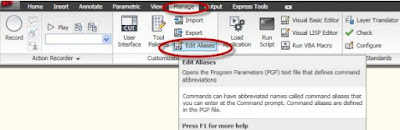
Fewer clicks and picks are one way to productivity, but what about eliminating the number of
keystrokes you execute? Rather than typing the entire command name, you can use
abbreviations called command aliases. Many AutoCAD commands are already programmed for three or fewer keystrokes.
command aliases

10.More keys to control: Love or Hate It?

People either love or hate control keys, but control freaks usually have their house in order. The importance of control keys is indicated by the presence of two of them on the keyboard! The following is a list of Control Keys defined in Windows and in AutoCAD.

CTRL+TAB     Cycles through open drawings – forwards 
CTRL+SHIFT+TAB   Cycles through open drawings – backwards 
CTRL+1    Properties 
CTRL+2    AutoCAD DesignCenter 
CTRL+3    Tool Palette Window 
CTRL+6    dbConnect 
CTRL+0    Cleanscreen 
CTRL+A    Select all 
CTRL+SHIFT+A  Toggles Group* 
CTRL+B    Toggles Snap 
CTRL+C    Copy to Clipboard 
CTRL+D    Toggles coordinate display 
CTRL+E    Cycles through isometric planes 
CTRL+F    Toggles running Object Snap 
CTRL+G    Toggles Grid 
*CTRL+H    Toggles Group  
CTRL+J    Executes last command 
CTRL+K    Insert hyperlink 
CTRL+L    Toggles Ortho on/off 
CTRL+T    Toggles Tablet mode 

4.23.2015

Layer Tips and Create Tables Linking To an Excel Spreadsheet

Layer Tips and Create Tables Linking To an Excel Spreadsheet

You can create a printable layer list from the new layer palette by selecting everything (CTRL+A), copying (CTRL+C) and then opening a new spreadsheet and pasting (CTRL+V).

layer-manager

Next tip: After pasting the data to spreadsheet. One easy way to do this is to copy the data from Excel. Select all of these items and then copy them to the Windows clipboard. Make sure the spreadsheet file is saved.  See Image 01 below.

spreadsheet
Image 01

Next, go back to AutoCAD. Then, in AutoCAD in the Clipboard panel on the Home ribbon tab, I'll select Paste Special. AutoCAD displays the Paste Special dialog. See image 02 below.
ribbon-tab
Image 02

In this dialog, I'll select Paste Link to paste the contents of the clipboard as a link. Notice that when I select Paste Link, I have a choice of pasting as a Microsoft Excel Worksheet or as AutoCAD Entities. Choose AutoCAD entities then Ok. See image 03 below.

paste-special-dialog-box
Image 03
As you hover the table there has an image look like a chain and padlock, these properties of the table have been linked and locked. To do this, click the cell; look up in the ribbon tab under “Table Cell” find the Cell Locking tab.  You will find the option of this, choose “Unlocked” and now you’re ready for editing.


autocad-table


Thanks for reading. Have a thoughts to share? Any comments are appreciated here. Next tutorial tips more on AutoCAD table editing and modifying.

7.09.2013

Tipniques: AutoCAD Sheet Sets - Project Management Tool

AutoCAD sheet sets are powerful tools in the hands of those that use them. Or at least they should be. Sheet Sets have been around since AutoCAD 2005 which was released in the year 2004. It's now the year 2013 and many, if not most, AutoCAD users still do not use sheet sets to their potential. Many don't use them at all. That's a shame because they are, in my opinion, the single most powerful and efficiency tool available in AutoCAD especially when working with many users on a project.

sheet_set_manager


What is this Sheet Set Tool
Users access sheet sets through the sheet set manager. This manager is a typical AutoCAD pallet. It can be moved around the screen, docked, hidden, collapsed, anything that you can do to a pallet. The SSM (sheet set manager) displays the sets, subsets and drawings in your project. This provides access to all of the drawings for the project. Clicking on the drawing name will open the file in AutoCAD for you. No hunting or drilling down in a file explorer to find your file. Click the name and the SSM brings the drawing to you. Printing is just as easy.  Select the drawing or set of drawings you want to print and press the print button. These two easy to do features in Sheet Sets is why most of us use them.  They make getting to your files extremely easy and the ability to batch plot any of the drawings without ever having to retrieve them is fantastic.

Printing, File Access and Project Data Management
What are the three biggest advantages to using sheet sets? Printing, file access and project data management. Of course there are more tools available in Sheet Sets but these are the main three areas.  The advantage to printing via Sheet Sets becomes obvious very quickly.  It allows you to print any sheet combination without opening the files.  File access is great to.  Every drawing associated with the project (added to the sheet set) is listed.  Clicking the drawing name will open the file to the proper paper space tab.  No more hunting for the file.  No more opening the wrong file either.  The third area of efficiency improvement is in Project Data Management.  Sheet Sets can store and share project specific data across any of the sheets in the set.  Let’s say that the project has a scheduled date of completion and you need to show that date on several drawings.  Things happen, as they always do, and the date changes.  You can go from sheet to sheet making the changes and possibly missing one or two, or even possibly making a mistake, or you can use Sheet Sets properties to manage that bit of data for you.  With Sheet Sets you can create a project database of information that can be set, and changed within the Sheet Set Manager.  Anywhere you need that data to display just insert the sheet set info.  When the Sheet Set data is changed so will the displayed data on your drawings.

Printing with Sheet Sets
Sheets sets are real easy to setup and use for batch print drawings. Select your drawings and click on the print button. If you do nothing else besides this that's ok. Sheet Sets make printing so easy.  You can print to specific media (paper), to PDF, to DWF, or to any type of output method that AutoCAD can handle.  Use the Sheet Set Page Setup Overrides and you can manage your Page Setups for the entire set.  You won’t be actually changing the page setups in the files, but you will have an associated template file (.DWT) that will store them for you. 

printing-sheet-set

File Access
Sheet Sets get you to your drawings right away.  As stated above, clicking on the file name in the Sheet Set Manager will open the file the drawing is in.  This makes things very easy for users.  They don’t have to hunt for the right file.  This is a tremendous help when there are multiple departments working on a project.  Suppose that you are a land developer and you have an engineering team, land planning team, survey team, and landscape architecture team.  All of you are working on the same project but each of you contributes in different ways.  Often times you will need to access other members’ drawings.  Do you want to hunt for them every time?  Not at all.  Do you want to have to ask a team member for the file?  Do you know which version of the file is current?  You don't have to ask any of these questions.  Just browse to that department’s subset and click on the file you want to look at.  It saves hassle by eliminating questions and file sharing.  It saves time.  It ensures everyone can easily get to the most current and proper drawings.

Project Data Management
Sheet Sets can help you communicate and share project specific data between your team members.  Continuing with the land development example above, let's suppose that that the residential project you are working on has 300 single family lots.  Put that information into the sheet set manager.  Now the Land Planning team has that info and can put it on their drawings.  the Landscape architecture team has that info and can design their plantings accordingly.  If it changes their drawings will be up to date even if you fail to let them know of such an important bit of information.

More with Sheet Sets
We looked at the three major areas of efficiency improvements that Sheet Sets can help you with.  There are more of course and I would like to name them here quickly.  Named Views.  Named views are nice.  You have probably used them before.  But you can share these views within a sheet set which will give quick navigation for users.  Click the named views and the proper drawing is opened and zoomed to that view.  You can also create new files and folders from a sheet set.  This ensures that every team member uses the proper template file to make a new drawing.  It also ensures that the file is saved in the proper place on your company’s network.  Sheet Sets can also insert a standard view (cross section, detail, etc.) block and manage the view name.  Again, this tool helps everyone work more efficiently.

Brian Benton is an Engineering Technician, CAD Service Provider, technical writer and blogger. He has over 18 years of experience in various design fields (Mechanical, Structural, Civil, Survey, Marine, Environmental) and is well versed in many design software packages (CAD, GIS, Graphics). He is Cadalyst Magazine’s Tip Patroller, AUGI HotNews Production Manager, and Infinite Skills AutoCAD training video author.

6.21.2013

CAD Tip Of The Day :Multifunctional Grips in AutoCAD

Dimensioning with Grips
Using AutoCAD 2012 you can now define baseline, continuous dimension, stretch and flip arrow. Without typing the command in command line but instead using the grips of the dimension and you can choose with variable options. More on that even the text dimension you can manipulate how will look like to your settings. However only dimension break is not on the list. Thanks to the power of Multifunctional Grips.


Multifunctional grips
You can do several more things with grips. Since AutoCAD 2011, Autodesk has introduced multifunctional grips. This was later enhanced in AutoCAD 2012. With multifunctional grips, you can choose what modification you would like to perform. You need only select an object, and then move your cursor above a grip. Grips not only allow you to use fewer tools, they also provide quicker and easier methods.
Previously, it was not easy to add a vertex to a complex polyline. Multifunctional grips now allow you to click a grip and quickly add vertex on that location.

Take a quick look below the image and you can try this at home
multifunctional-grips
the cross-hair is hovering to the grips of text dimension


multifunctional-grips
the cross-hair is hovering to the grips at the extension line of dimension

Are you looking for a super-speedy way to add or modify dimensions? Multifunctional grips to the rescue! In this video tip from Cadalyst and Lynn Allen, you'll learn how multifunctional grips relate to dimensions, and get on the road to instant productivity.
Check this video.

6.12.2013

Tips Before Recovering a Drawing

Autodesk Product Support strongly recommends that you perform the following steps before recovering a corrupted drawing:

Make a copy or copies of your drawing on reliable storage media. For example, if you suspect that your hard disk contains bad sectors, copy your files to another network drive, USB flash drive, and external hard drives. It is best to perform recovery operations on a copy of the file, since there are several different methods of recovery and each method alters the file in a different way. 
For each recovery method, it is best to use a copy of the original file since recovery processes may alter a damaged drawing yet still not recover it enough that AutoCAD can open it. 
If you retain a copy of the original damaged file, you can then use another recovery process on the original file.

Identify and make backup copies of BAK files associated with the damaged drawing. If you open and save a damaged file without fully recovering it, you may overwrite a good BAK file with a corrupted BAK file.

Note that there is a mechanism in AutoCAD that prevents a good BAK file from being over-written by a corrupted BAK file. When AutoCAD saves a drawing, it also checks the file for corruption. If the file is corrupted, AutoCAD does not overwrite the existing BAK file. Instead, it creates backup files that have the file extension(s). bk1, .bk2, .bk3, etc. Be aware that this process is not always successful; therefore, it is a good idea to make archive copies of good BAK files if you suspect that you have corrupted file.

Try to identify the source of the corruption. For example, if you suspect that drawings are becoming corrupted by copying files onto a hard disk with bad sectors,you should identify and correct the problem with the hard disk before you begin to recover your files. By doing some investigation, you may find that there is more than one source that is causing the corruption or that your original assumption about what is causing the problem is incorrect.

Record any error messages generated by AutoCAD or the operating system. Note when the messages occur in order to find a connection between the messages and when the drawing becomes corrupted. Continue to record any errors or messages that are generated during the recovery process.

Next to read:


3.25.2013

The Triple "R" IN AutoCAD: REPAIR, RESTORE and RECOVER

Repair a Damaged Drawing File
If a drawing file is damaged, you can recover some or all of the data by using commands to find and correct errors.
drawing-recovery

Repair and Recovery

When an error occurs, diagnostic information is recorded in the acad.err file, which you can use to report a problem.

A drawing file is marked as damaged if corrupted data is detected, or if you request that the drawing be saved after a program failure. If the damage is minor, sometimes you can repair the drawing simply by opening it. A recovery notification is displayed while opening drawing files that are damaged and need recovery. You can
  •  RECOVER. Performs an audit on, and attempts to open, any drawing file.
  •  RECOVERALL. Similar to recover, it additionally operates on all nested xrefs. The results are displayed in the Drawing Recovery Log window.
  • AUDIT. Finds and corrects errors in the current drawing.
  • RECOVERAUTO. Controls the display of recovery notifications before or after opening a damaged drawing file.

Create and Restore Backup Files
Backup files help ensure the safety of your drawing data. If a problem occurs, you can restore a drawing backup file.

Computer hardware problems, power failures or surges, user mistakes, or software problems can cause errors in a drawing. By saving your work frequently, you can ensure a minimum of lost data if your system fails for any reason. If a problem occurs, you can restore a drawing backup file.

Use Backup Files

In the Open and Save tab (Options dialog box), you can specify that backup files are created when you save drawings. If you do, each time you save a drawing, the previous version of your drawing is saved to a file with the same name and a .bak file extension. The backup file is located in the same folder as the drawing file.

You can revert to your backup version by renaming the .bak file in Windows Explorer to a file with a .dwg extension. You may want to copy it to a different folder to avoid overwriting your original file.

Save Your Drawing Automatically at Specified Intervals

If you turn the automatic save option on, your drawing is saved at specified time intervals. By default, files saved automatically are temporarily assigned the name filename_a_b_nnnn.sv$.


  • Filename is the current drawing name.
  • a is the number of open instances of the same drawing file in the same work session.
  • b is the number of open instances of the same drawing in different work sessions.
  • nnnn is a random number.

These temporary files are automatically deleted when a drawing closes normally. In the event of a program failure or a power failure, these files are not deleted.

To recover a previous version of your drawing from the automatically saved file, rename the file using a .dwg extension in place of the .sv$ extension before you close the program.

Recover from a System Failure
A hardware problem, power failure, or software problem can cause this program to terminate unexpectedly. If this happens, you can restore the drawing files that were open.

If the program fails, you can save your current work to a different file. This file uses the format, DrawingFileName_recover.dwg, where DrawingFileName is the file name of your current drawing.

Resolve Drawing Files

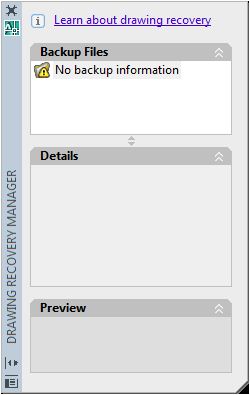
After a program or system failure, the Drawing Recovery Manager opens the next time you start AutoCAD. Drawing Recovery Manager displays a list of all drawing files that were open, including the following drawing file types:
  •  Drawing files (DWG)
  •  Drawing template files (DWT)
  •  Drawing Standards files (DWS)

Note: Unsaved drawings that are open at the time of an unexpected failure are not tracked by the Drawing Recovery Manager. Be sure to save your work after you begin, and regularly thereafter.
For each drawing, you can open and choose from the following files if they exist
  • DrawingFileName_recover.dwg
  • DrawingFileName_a_b_nnnn.sv$
  • DrawingFileName.dwg
  • DrawingFileName.bak

Note: The drawing, backup, and recover files are listed in the order of their time stamps—the time when they were last saved.
Double-click a top-level drawing node listed under Backup Files to display up to four files as listed above. Right-click any node under Backup Files to display shortcut menu options.

If you close the Drawing Recovery window before resolving all affected drawings, you can open Drawing Recovery at a later time with the DRAWINGRECOVERY command.

Send an Error Report Automatically to Autodesk

If the program encounters a problem and closes unexpectedly, you can send an error report to help Autodesk diagnose problems with the software. The error report includes information about the state of your system at the time the error occurred. You can also add other information, such as what you were doing at the time of the error. The REPORTERROR system variable controls whether the error-reporting feature is available.


2.08.2013

Cad Tip of the Day

XREF or External Reference

Xref is the most useful command from AutoCAD. If you are going to use the software for work
or you are looking to advance further, you will need to know how to use the xref command. It is
absolutely necessary. And I will show you why.

Xref is used to cross reference plans and objects because you want to minimize repetitions,
maximize consistency, save time and increase productivity.

Now, let us become more practical here. Let us assume you have three drawings. I will call them
sheet 1, sheet 2 and sheet 3 (see images below)

autocad-xref

Sheet 1 shows a rectangle. But it could be anything else. The two other sheets have circles, etc., 
but they both have one thing in common : a rectangle. So instead of drawing that rectangle twice, 
it would be wise to draw it once and xref it to both drawings. Some of you might think: What if I 
draw it once and then copy it to each drawing? 

 If you copy the drawing you will have to copy it again if you want to make changes to that 
rectangle. Let us say you want to make it larger or want to chamfer the edges. Do you want to 
copy again? Or do you want to just change the xref and that is it. 

The idea here is to reduce steps and time by drawing anything in common once. And that is 
when the xref comes in handy. 


autocad-xref

here are two types of xrefs: Overlay and Attachment. 

Overlay: only brings what you draw inside that xref sheet. No other dependent. In other words: if 
you were to look at a tree diagram, it only goes one level deep (see image above on the left). 

Attachment xrefs bring unlimited dependent xrefs and levels (see image above on the right). 

Steps: 

    1.  Type XREF at the command line to bring the dialogue box. 
    2.  Right click and select Attach DWG. 
    3.  Browse for the drawing you want to xref. 
    4.  Select Open. 
    5.  Pick Overlay or Attachment. 
    6.  For the path, choose Full path for this tutorial. 
    7.  For insertion point, scale and rotation: leave them unchecked for this tutorial. 
    8.  Click OK and close the dialogue box. 
xref-autocad
Your xref drawing should be inserted inside the current drawing like the above image.

Related Post
Cad Tip Of the Day

12.23.2012

CAD Tip Of The Day: Create a Block in AutoCAD

Create a Block in AutoCAD


block definition

Creating a block is a basic task that every AutoCAD user should know. But even if you've been using blocks for years, I think that you’ll find the links at the end to more advanced tips helpful. Put together, these tips make up an advanced tutorial on blocks.

What is an AutoCAD block? A block is simply a collection of objects (it could be one object) that has a name. Blocks have several advantages:


  •  You can insert them again and again, saving time. In fact, you can insert them into other drawings as well.
  •  A block uses less electronic space than individual objects, so your drawing file is smaller.
  •  By updating a block’s definition, you can update all the blocks in the drawing.

Note: Dynamic blocks are blocks that have added parameters that function in certain defined ways. Look at the end of this post for links to some posts on dynamic blocks.

How do you create a block?To create a block, follow these steps:


1. Draw the objects that you want in the block.


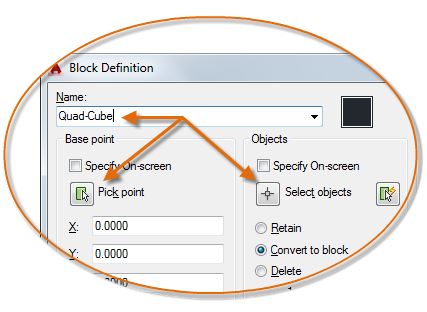
2. Choose Home tab,  Block panel, Create to start the BLOCK command. The Block Definition dialog box opens.


3. Type a name in the Name text box. The name can have spaces.


4. You need to specify a base point. That’s the point at which you’ll insert the block. In the Base Point section, click Pick Point. Be sure to use an object snap for accuracy! You’ll immediately be returned to the dialog box.


5. In the Objects section, click the Select Objects button. Select the objects and press Enter to return to the dialog box. Tip: You can select the objects before using the command and they’ll show up in the dialog box.


6. Just below, choose Retain, Convert to Block, or Delete. These options control what happens after you create the block.


7. In the Behavior section, you can make a block Annotative (more info here), force it to scale uniformly and choose whether to allow exploding.


8. In the Settings area, choose the block unit. You can choose Unitless but if you choose a unit, AutoCAD will try to scale the block appropriately when you insert it into another drawing. You can also add a hyperlink if you want.


9. Finally, you can add a description in the Description box. A description is helpful in the Design Center, when you want to insert the block from another drawing.


10. Click OK to complete the box. If you chose Delete, the objects disappear. You can use the OOPS command to bring them back.


Revit Dynamo vs. Python Scripting: Choosing Your Automation Tool

Both Revit Dynamo and Python scripting are incredibly powerful tools for extending Revit's capabilities, automating repetitive tasks, an...