How to Save Auto-CAD Drawing as Read Only – is quite a difficult way to answer. The only way to answer this question is by giving different options for the user to Save Auto-CAD Drawing as Read Only. Let’s see some of them below.
Save Auto-CAD Drawing as Read Only
Some of the different methods are listed below please choose which is appropriate in your case.
Method 1 – Use Save As Auto-CAD Drawing Files as DXF (Drawing Interchange Format, or Drawing Exchange Format is a CAD data file format developed by Autodesk), by this method you actually prevent the user to make any changes to your drawing files. Making the Drawing as Read-Only Files
Method 2 – Ideally you could right click on the drawing file icon (once saved), go to properties and tick read only. Ahh, well that doesn’t “lock” the drawing or anything. they can still edit it, do a Save As, or simply unchecked the Read Only option for the file once they have it.
Method 3 – In case you are on a Network, you can request your Network Administrator to make a READ only Folder and put all the files into it – Eg., READ capabilities but not WRITE capabilities. that way it’ll never be altered, and the file can still be used for Inserting blocks. However, here if you use the explode blocks this will come back into action.
Method 4 – Although there are different ways to do a Read Only format, one simple method is to have your Auto-CAD Drawing converted into a PDF file, there by making all your Auto-CAD Drawings Read-Only Mode as you cannot edit the Pdf files and can open in a standard acrobat reader.
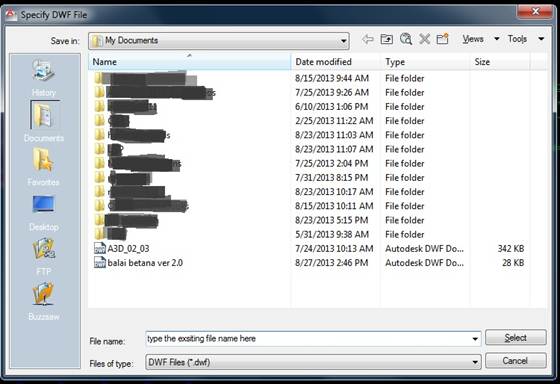
Method 5 – Use Save As Auto Cad Drawing Files as DWF (Design Web Format), The sole purpose of DWF is to allow designers, engineers, project managers, and their colleagues to communicate design information and design content to anyone needing to view, review, or print design information – without these team members needing to know Auto-CAD or other design software. https://en.wikipedia.org/wiki/Design_Web_Format
The post How to Save AutoCAD Drawing as Read Only appeared first on 2D Professor (http://www.2DProfessor.com)